Prepare the fields
Give the form an email field, plus any name or custom fields you want in SendPulse.
SendPulse integration
The Fluent Forms SendPulse integration uses ClickSyncr for SendPulse to send each submission to a SendPulse address book.
A clear setup path
Keep the existing form and configure the destination beside the workflow you already use.
Give the form an email field, plus any name or custom fields you want in SendPulse.
Paste your SendPulse API key into the connection settings and connect.
Pick where new subscribers land in SendPulse: the list, group, form or audience you use.
Pair each form field with a SendPulse field. Email is required; the rest is optional.
Send a test entry, then find the new subscriber in SendPulse before you rely on the form.
The Fluent Forms SendPulse integration uses ClickSyncr for SendPulse to send each submission to a SendPulse address book. Its integration feed lets you connect the account, choose the destination, and map the answers collected by this form.
You need an active Fluent Forms installation, a SendPulse account, and access to its API key. The plugin’s readme, checked on 10 November 2026, requires WordPress 6.7 or later and PHP 7.4 or later. Prepare an email field and the other answers you want to collect before opening the integration.
If the Fluent Forms form should collect a marketing choice, add a suitable consent input before mapping. Decide which SendPulse address book should receive the contact. This gives you a specific destination to check when testing, instead of looking only for a successful form confirmation.
In WordPress, open Plugins > Add New. Find ClickSyncr for SendPulse – Contact Form 7, WPForms, Gravity Forms, Ninja Forms, Fluent Forms, Formidable & Forminator, then select Install Now and Activate. Keep Fluent Forms active too: ClickSyncr adds an integration to that builder’s form settings.
Enable the ClickSyncr for SendPulse module in Fluent Forms’ integrations area. Open your form’s settings and its integrations, then add or edit the ClickSyncr feed. Enter a Feed Name so you can distinguish this connection from other feeds on the form.
The Fluent Forms feed holds the account connection and field mappings. Open that feed to connect your key and choose the destination. Save the feed after changing mappings, and use the actual published form to check that its configured integration receives the submitted answers.
In SendPulse, open Settings > API. Generate a key or copy an existing key, as described in the plugin’s setup instructions. Paste it into the form’s ClickSyncr for SendPulse configuration and select Connect. Choose the intended address book from the loaded destinations.
Confirm the SendPulse destination before mapping additional answers. If you change the account or select another address book, review the loaded fields again. Save the Fluent Forms configuration after the connection and mappings are complete.
Map Email, then the variables loaded from the selected SendPulse address book. The variable names come from that address book, so there is no universal name-field list to copy. The mapping includes number and date types when the account declares them; other variables appear as text.
Match each SendPulse field to the Fluent Forms answer that contains the intended value. Check the source field’s label and type, especially when the form has similar names for several inputs. Use a test containing every mapped answer so missing values are visible during review.
Under Subscription and consent, select a Consent field if this Fluent Forms form should send only opted-in contacts. When selected, a checked answer allows delivery and an unchecked answer sends nothing to SendPulse. Without a selected field, the saved status choice controls delivery.
SendPulse offers immediate addition or Ask them to confirm by email (requires a verified sender). Confirmation uses the WordPress site administration email, which must be an activated sender in SendPulse. The confirmation message is sent in English. A selected consent field overrides the form’s status choice, so test that combination explicitly.
Submit the public form with a contact you control and fill every mapped answer. In SendPulse, inspect the selected address book and compare the stored values. Check ClickSyncr’s recorded sync status too. If consent is configured, repeat with it unchecked and confirm that the contact was not sent.
“Verify the site administration email as a SendPulse sender before asking contacts to confirm.” requires activating that sender in SendPulse. “SendPulse did not confirm that the contact was saved.” means the response did not confirm success. Inspect the address book before submitting another test.
The message “Nothing was sent. This form has no API key.” calls for checking the saved SendPulse connection on this form. Fix the reported issue before testing again. Do not assume a Fluent Forms success message means the destination accepted the contact.
The SendPulse overview covers the destination, while the Fluent Forms hub covers the builder. Review ClickSyncr Pro separately if you are comparing the available editions.
When a test entry reaches SendPulse with the right fields and consent, the Fluent Forms SendPulse integration is ready for real visitors.
The plugin asks the selected address book for its variables and displays the returned names. Email has its own required mapping. Choose a matching form answer for each variable you need, and leave unrelated values unmapped. If you switch address books, inspect the choices again because the new book can have different variables. Verify the saved values with a test contact.
Choose a Consent field from the form’s supported inputs. When that field is configured, a checked answer allows the contact to be sent and an unchecked answer stops delivery. That choice overrides the form’s general subscriber status. Test an unchecked submission separately from a checked one. A confirmation-email status also needs the site administration email activated as a SendPulse sender.
Install and activate ClickSyncr for SendPulse alongside your form builder. Open the form’s ClickSyncr configuration, connect the account key, choose an address book, and map Email plus the variables you collect. Review consent and subscriber status, then save. Finish with a public-form test and compare the contact’s address-book membership and values with the answers you submitted.
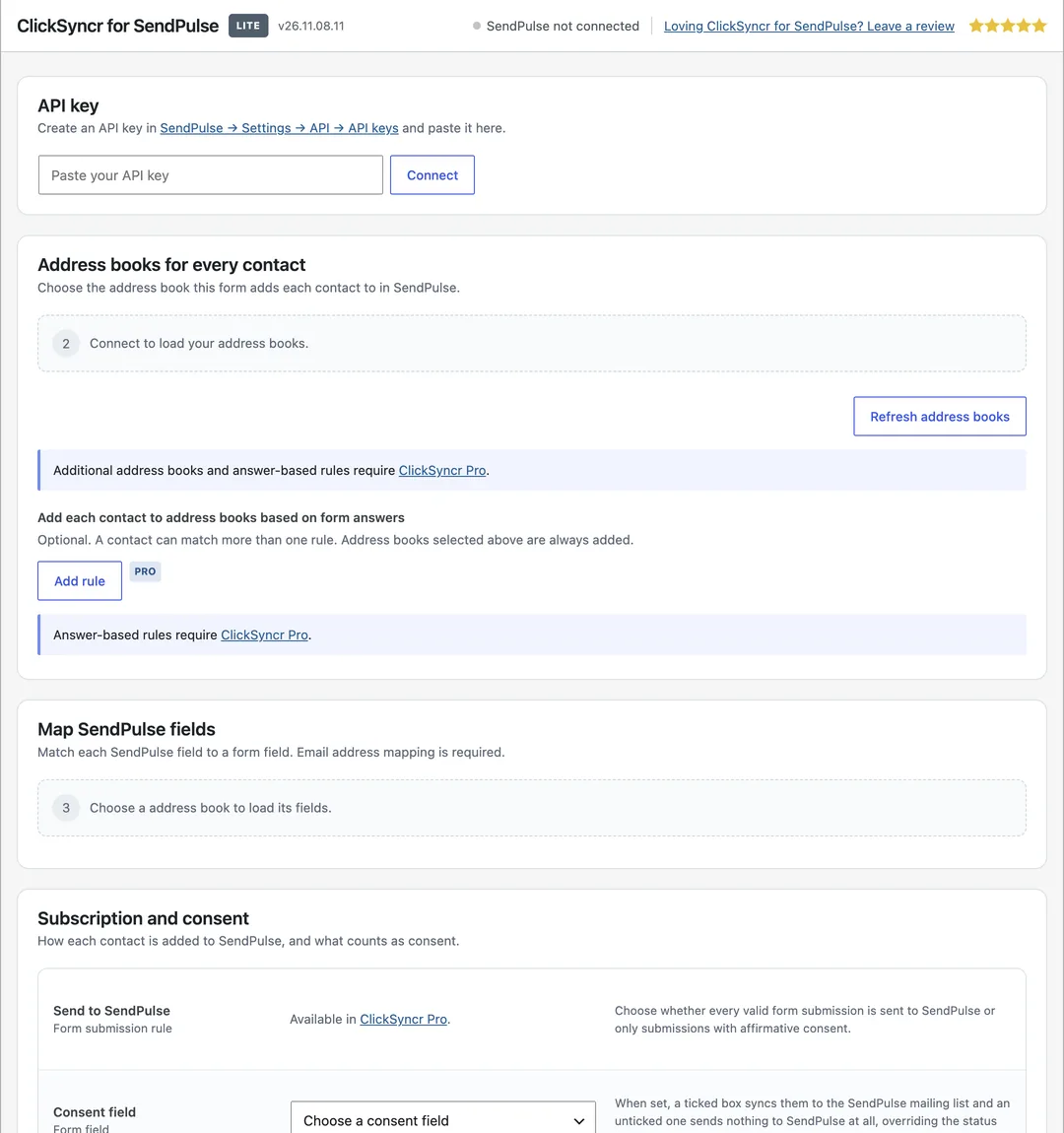
What you will see
The same panel appears inside every supported form builder, on each form you connect.
More guides
Set up the Fluent Forms Benchmark Email integration with ClickSyncr for Benchmark Email.
View guideConnect Fluent Forms to Beehiiv and every form submission becomes a subscriber in the publication you choose.
View guideConnect Fluent Forms to Brevo and every form submission becomes a contact in the Brevo list you choose.
View guideConnect Fluent Forms to Campaign Monitor and every form submission becomes a subscriber in the Campaign Monitor list you choose.
View guideSet up the Fluent Forms Elastic Email integration with ClickSyncr for Elastic Email.
View guideConnect Fluent Forms to EmailOctopus and every form submission becomes a subscriber in the EmailOctopus list you choose.
View guideThe Fluent Forms GetResponse integration uses ClickSyncr for GetResponse to send each submission to a GetResponse list.
View guideConnect Fluent Forms to Kit, the email platform formerly known as ConvertKit, and every form submission becomes a subscriber in the…
View guideConnect Fluent Forms to Klaviyo and every form submission becomes a profile in the list you choose.
View guideConnect Fluent Forms to MailerLite through a native Fluent Forms integration feed.
View guideConnect Fluent Forms to Moosend and every form submission becomes a subscriber in the Moosend mailing list you choose.
View guideSet up the Fluent Forms Drip integration with ClickSyncr for Drip.
View guideThe Fluent Forms Loops integration uses ClickSyncr for Loops to send each submission to a Loops mailing list.
View guideYour next subscriber is one connection away
Install ClickSyncr, connect your platform, and publish your first tested sync in about two minutes.
Built by Renzo Johnson