Prepare the fields
Complete this step in the ClickSyncr interface and save the configuration.
Moosend integration
ClickSyncr for Moosend is a Moosend integration for WordPress forms: it turns form submissions into Moosend subscribers automatically. It works with Contact Form 7, WPForms, Gravity Forms, Ninja…
A clear setup path
Keep the existing form and configure the destination beside the workflow you already use.
Complete this step in the ClickSyncr interface and save the configuration.
Complete this step in the ClickSyncr interface and save the configuration.
Complete this step in the ClickSyncr interface and save the configuration.
Complete this step in the ClickSyncr interface and save the configuration.
Complete this step in the ClickSyncr interface and save the configuration.
ClickSyncr for Moosend is a Moosend integration for WordPress forms: it turns form submissions into Moosend subscribers automatically. It works with Contact Form 7, WPForms, Gravity Forms, Ninja Forms, Fluent Forms, Formidable Forms, and Forminator: whichever builder your site uses, every submission lands in the Moosend mailing list you choose, with field mapping and no code required.
ClickSyncr integrates natively with each builder, so the Moosend settings live where you already work. Each name links to its step-by-step setup guide:
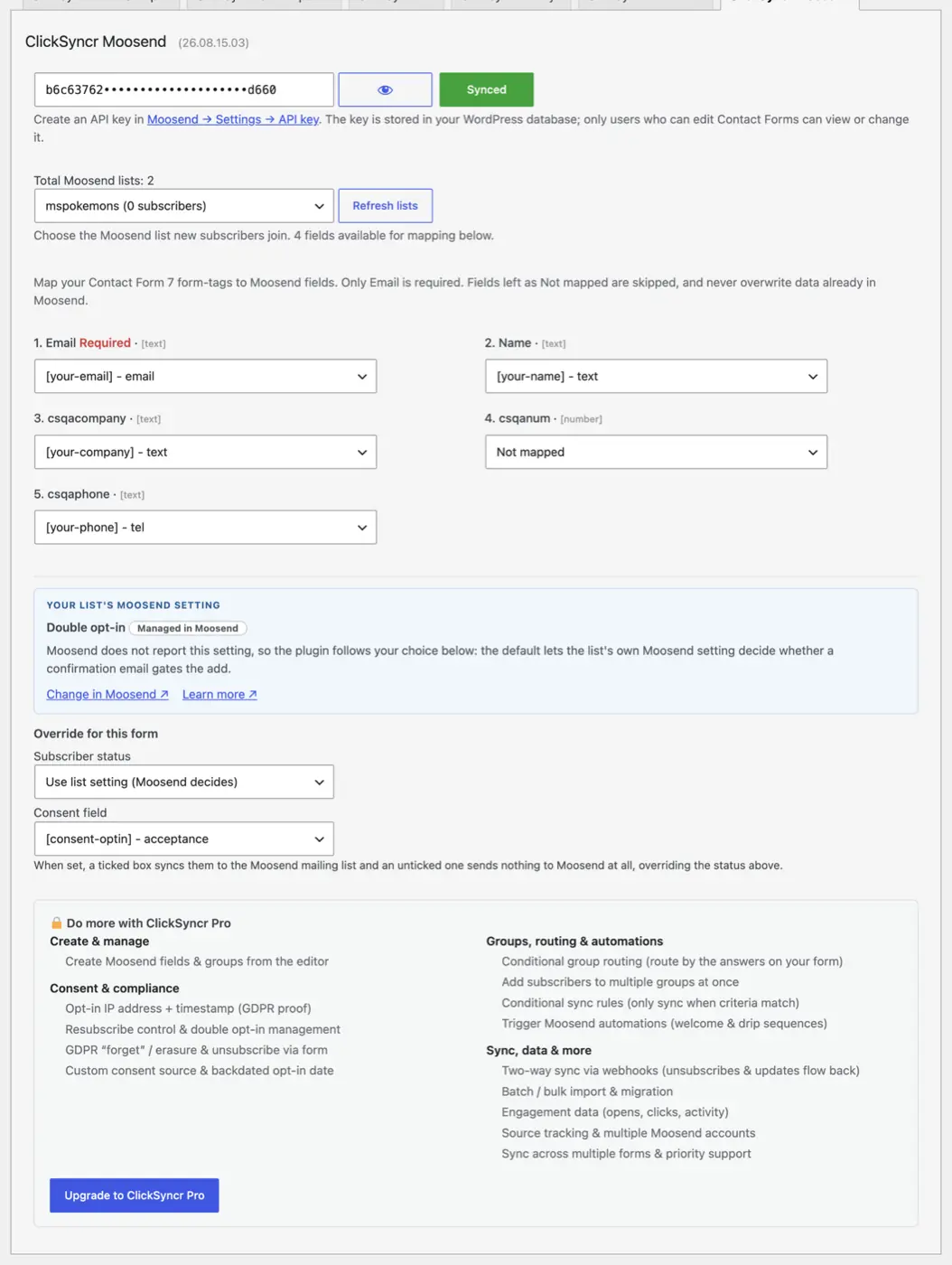
Treat the key like a password. Anyone holding it can read and modify your Moosend audience.
Any of them. If your site already runs Contact Form 7, WPForms, Gravity Forms, Ninja Forms, Fluent Forms, Formidable Forms, or Forminator, ClickSyncr connects the forms you already have to Moosend: there is no reason to switch builders just to grow your mailing list. The plugin only loads the integrations for builders you actually have active, and the sync behaves identically on all seven.
“Moosend” is a trademark of its owner. ClickSyncr for Moosend is an independent integration and is not affiliated with, endorsed by, or sponsored by Moosend or Sitecore.
26.09.28.21
PHP 7.4 support
Moosend now runs on PHP 7.4 and newer.
Your next subscriber is one connection away
Install ClickSyncr, connect your platform, and publish your first tested sync in about two minutes.
Built by Renzo Johnson