Prepare the fields
Complete this step in the ClickSyncr interface and save the configuration.
Klaviyo integration
Connect Fluent Forms to Klaviyo and every form submission becomes a profile in the list you choose. The free ClickSyncr for Klaviyo plugin adds a native Fluent Forms…
A clear setup path
Keep the existing form and configure the destination beside the workflow you already use.
Complete this step in the ClickSyncr interface and save the configuration.
Complete this step in the ClickSyncr interface and save the configuration.
Complete this step in the ClickSyncr interface and save the configuration.
Complete this step in the ClickSyncr interface and save the configuration.
Complete this step in the ClickSyncr interface and save the configuration.
Connect Fluent Forms to Klaviyo and every form submission becomes a profile in the list you choose. The free ClickSyncr for Klaviyo plugin adds a native Fluent Forms integration with per-form feeds: connect your private API key once, pick a list, map your fields, save. So there is no code, and it takes about two minutes per form.
You need three things: the ClickSyncr for Klaviyo plugin activated, Fluent Forms active, and a Klaviyo account (free accounts work) with permission to create a private API key. You store the key once, and every supported builder on the site then shares it.
lists:read, lists:write, profiles:write and subscriptions:write access.Treat the key like a password. Anyone holding it can read and modify your Klaviyo lists and profiles.
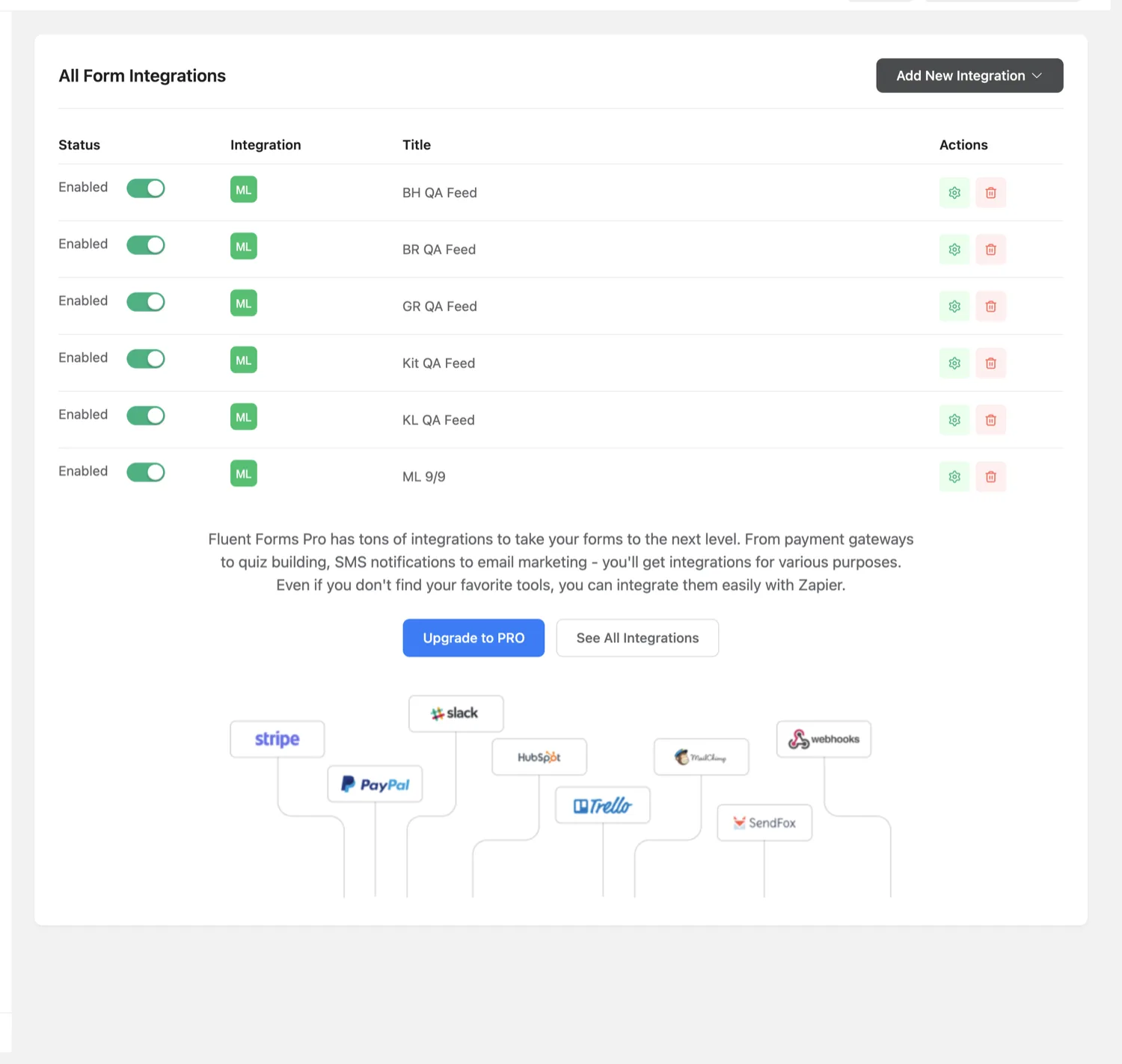
Klaviyo identifies profiles by email, so Email is the one required mapping. First name, last name, phone number, organization and title map to Klaviyo’s standard profile fields; every other mapping is stored as a custom property on the profile. Also, ClickSyncr simply skips an unmapped field and never overwrites existing profile data with a blank value.
Each form chooses a subscriber status: subscribe with marketing consent, add as a non-marketing member only, or Use list setting, which defers to the list’s own single or double opt-in mode. The list picker shows each list’s real opt-in mode, so you know before you choose. A consent field overrides it per submission: ticked subscribes, unticked stores a member without marketing consent. Klaviyo matches profiles by email, so it updates existing profiles instead of duplicating them.
First, submit the form on the front end (not the admin preview) with a test address you can recognise, filling every mapped field. Then, in Klaviyo, open the list and confirm the profile exists with the mapped values and the consent state you expect. In short, that one minute catches almost every configuration mistake.
| Symptom | Cause and fix |
|---|---|
| The list dropdown is empty | The key is missing, mistyped, or lacks the required scopes. Re-check that the private key carries lists:read, lists:write, profiles:write and subscriptions:write, then reconnect. |
| Submissions do not appear in Klaviyo | Nine times out of ten the Email field is not mapped. It is the one required mapping. Fix it, then submit a fresh test. |
| A new list or property is not listed | The catalog is cached briefly. Use the refresh control in the Fluent Forms settings. |
| The profile syncs but a field is empty | Either that field is unmapped, or it was blank on the submission. ClickSyncr skips empty values, so they never wipe existing Klaviyo data. |
| A profile is in the list but not subscribed | The consent field was unticked, or the form’s status adds members without marketing consent. Check the consent mapping first, then the list’s own opt-in mode. |
Yes. The ClickSyncr Klaviyo integration registers in the free Fluent Forms as a native integration module.
The integration follows Fluent Forms’ feed model, so each form’s Klaviyo feed carries its own list and mapping.
ClickSyncr for Klaviyo also connects Contact Form 7 · WPForms · Gravity Forms · Ninja Forms · Formidable Forms · Forminator. Overview, features and pricing: Klaviyo integration for WordPress. Browse all ClickSyncr integrations.
“Klaviyo” is a trademark of its respective owner. ClickSyncr for Klaviyo is an independent integration and is not affiliated with, endorsed by, or sponsored by Klaviyo.
Your next subscriber is one connection away
Install ClickSyncr, connect your platform, and publish your first tested sync in about two minutes.
Built by Renzo Johnson