Prepare the fields
Give the form an email field, plus any name or custom fields you want in Benchmark Email.
Benchmark Email integration
Set up the Forminator Benchmark Email integration with ClickSyncr for Benchmark Email. Choose a list in the form’s settings, map the contact data, and decide whether visitors must consent before the plugin sends anything.
A clear setup path
Keep the existing form and configure the destination beside the workflow you already use.
Give the form an email field, plus any name or custom fields you want in Benchmark Email.
Paste your Benchmark Email API key into the connection settings and connect.
Pick where new subscribers land in Benchmark Email: the list, group, form or audience you use.
Pair each form field with a Benchmark Email field. Email is required; the rest is optional.
Send a test entry, then find the new subscriber in Benchmark Email before you rely on the form.
Set up the Forminator Benchmark Email integration with ClickSyncr for Benchmark Email. Choose a list in the form’s settings, map the contact data, and decide whether visitors must consent before the plugin sends anything.
Each form has its own connection and destination. These steps follow the plugin code checked on 10 November 2026.
You need WordPress, an active Forminator installation, and permission to install and configure plugins. Have a Benchmark Email account and credentials for the platform your account uses. Classic keys and new-platform keys follow different connection paths. Prepare an email input and a consent checkbox if subscriptions require permission.
In WordPress, open Plugins > Add New. Search for ClickSyncr for Benchmark Email – Contact Form 7, WPForms, Gravity Forms, Ninja Forms, Fluent Forms, Formidable & Forminator. Choose Install Now, then Activate.
Enable ClickSyncr for Benchmark Email in Forminator’s integrations, then edit the form and open its Integrations settings. Connect ClickSyncr for Benchmark Email to that form. The settings window is headed Send this form to Benchmark Email; choose the list and map Email before saving the connection.
For a classic account, open Benchmark Email, Integrations, API and copy the key. For a key beginning with bme_, open Benchmark Settings > API Keys. Copy both the key and its HTTPS API base URL. Enter that URL in API base URL; the current settings code requires contacts:write permission for this connection. Click Connect to verify and save the credential. Then select the Benchmark Email list that should receive this form’s submissions.
For a classic list, the mapping code includes FirstName, MiddleName, and LastName. It then reads the selected list’s named custom slots, Field1 through Field24, with text, number, boolean, or date types. A list’s actual labels determine which choices appear. New-platform accounts load field labels and requirements from the selected contact structure; map the required fields shown for that structure.
Forminator stores this setup for the individual form. Its settings check that you have selected a destination and mapped the email address. If you see “Map the email address to a form field.”, select the visitor’s email input before trying to save again. Leave optional fields unmapped when the form does not collect that information.
Open Subscription and consent and choose the form’s Consent field when a visitor must opt in. A ticked choice allows the sync; an unticked choice sends nothing to Benchmark Email. Classic Benchmark lists apply their own subscription settings. The plugin does not choose a different confirmation rule for each classic subscription. With a new-platform key, the settings state that double opt-in is unavailable through that API. New contacts are Active, while existing inactive contacts stay inactive. Save the settings after choosing the behavior you need.
Submit the published Forminator form after its integration reports that it is connected to this form. Check the Benchmark Email record and the chosen list. Use a test contact you control and compare the mapped values in Benchmark Email. If you require consent, also submit once with the checkbox unticked. Confirm that the second submission does not add a contact. Check the sync result as well as the form’s confirmation.
“Nothing was sent. This form has no API key.” means this form still needs its credential. “not configured or email missing/invalid” points to the selected destination or email mapping. “Nothing was sent. Consent was not given.” records the unticked consent path; it is not a reason to remove the consent requirement.
“Benchmark returned a different list.” means the returned list does not match the selected list. Refresh the list choices and select the intended destination again. For a new-platform key, “Enter the HTTPS API base URL from Benchmark Settings > API Keys.” points to the required account-specific URL.
The Benchmark Email integration hub covers the service across builders. Use the Forminator integration guide to compare destinations for this builder. For additional product options, review ClickSyncr Pro.
When a test entry reaches Benchmark Email with the right fields and consent, the Forminator Benchmark Email integration is ready for real visitors.
Install ClickSyncr for Benchmark Email, then open the form’s Integrations settings, under ClickSyncr for Benchmark Email. Connect the account for this form and select the list. Map Email before the optional fields, review consent, and save. Submit the public form and check Benchmark Email to confirm that the saved configuration sends the expected contact data.
For a classic list, the mapping code includes FirstName, MiddleName, and LastName. It then reads the selected list’s named custom slots, Field1 through Field24, with text, number, boolean, or date types. A list’s actual labels determine which choices appear. New-platform accounts load field labels and requirements from the selected contact structure; map the required fields shown for that structure. Recheck the saved mapping after changing the form or destination.
Yes. Select a supported consent field from this Forminator form in Subscription and consent. When you choose that field, a ticked answer allows the sync and an unticked answer sends nothing to Benchmark Email. Save the form’s settings, then test both paths with distinct test contacts so you can tell the results apart.
The current code recognises a key beginning with bme_ and uses a separate connection path. It also requires the HTTPS API base URL from Benchmark Settings > API Keys. A key alone is not enough. Check that the credential has contacts:write permission, then connect and select the intended contact list before mapping its fields.
What you will see
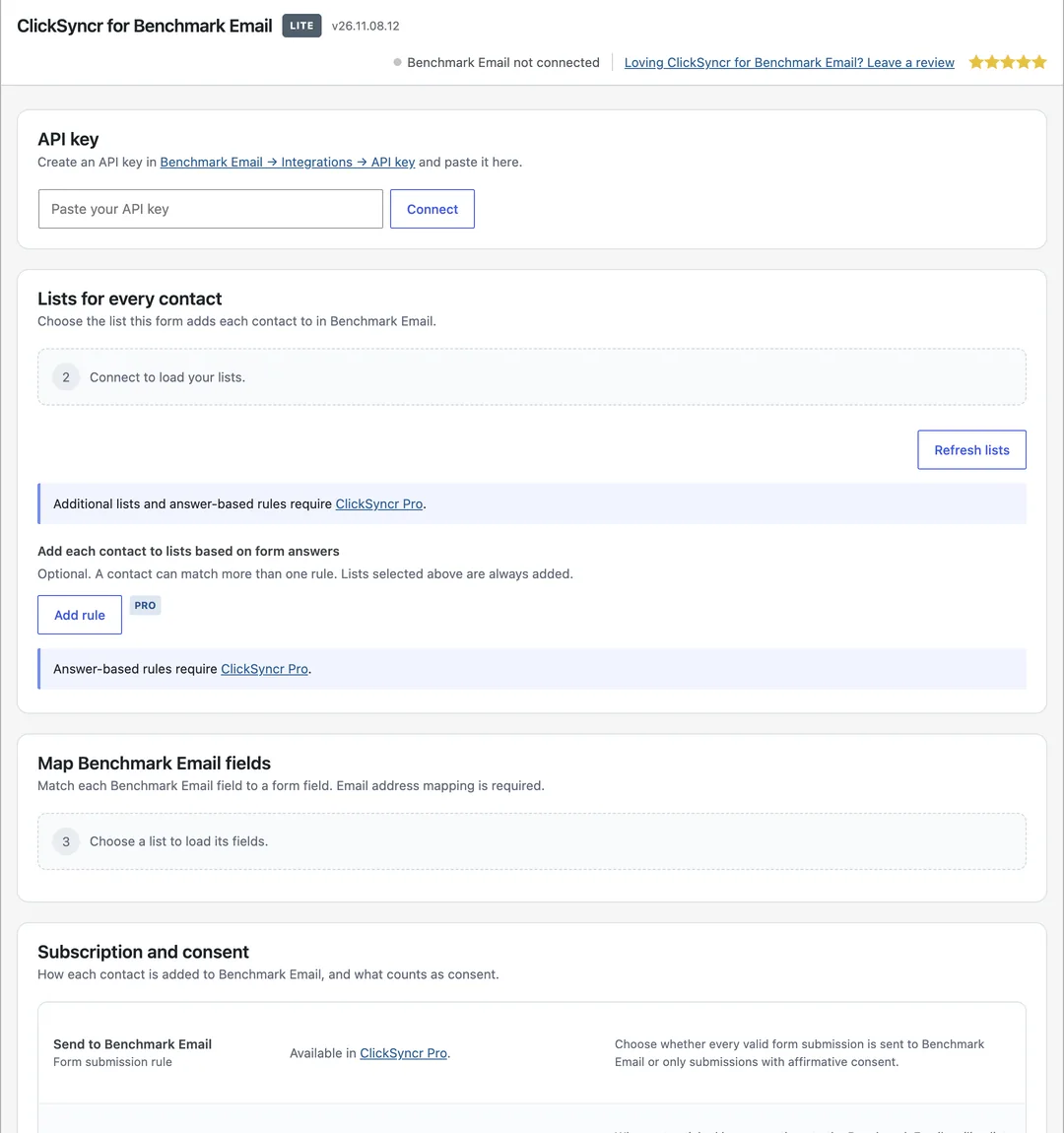
The same panel appears inside every supported form builder, on each form you connect.
More guides
Connect Forminator to Beehiiv and every form submission becomes a subscriber in the publication you choose.
View guideConnect Forminator to Brevo and every form submission becomes a contact in the Brevo list you choose.
View guideConnect Forminator to Campaign Monitor and every form submission becomes a subscriber in the Campaign Monitor list you choose.
View guideSet up the Forminator Elastic Email integration with ClickSyncr for Elastic Email.
View guideConnect Forminator to EmailOctopus and every form submission becomes a subscriber in the EmailOctopus list you choose.
View guideThe Forminator GetResponse integration uses ClickSyncr for GetResponse to send each submission to a GetResponse list.
View guideConnect Forminator to Kit, the email platform formerly known as ConvertKit, and every form submission becomes a subscriber in the Kit form you choose.
View guideConnect Forminator to Klaviyo and every form submission becomes a profile in the list you choose.
View guideConnect Forminator to MailerLite and every form submission becomes a subscriber in the group you choose.
View guideConnect Forminator to Moosend and every form submission becomes a subscriber in the Moosend mailing list you choose.
View guideThe Forminator SendPulse integration uses ClickSyncr for SendPulse to send each submission to a SendPulse address book.
View guideSet up the Forminator Drip integration with ClickSyncr for Drip.
View guideThe Forminator Loops integration uses ClickSyncr for Loops to send each submission to a Loops mailing list.
View guideYour next subscriber is one connection away
Install ClickSyncr, connect your platform, and publish your first tested sync in about two minutes.
Built by Renzo Johnson