Prepare the fields
Complete this step in the ClickSyncr interface and save the configuration.
EmailOctopus integration
Connect Gravity Forms to EmailOctopus and every form submission becomes a subscriber in the EmailOctopus list you choose. ClickSyncr for EmailOctopus adds a native Gravity Forms feed add-on:…
A clear setup path
Keep the existing form and configure the destination beside the workflow you already use.
Complete this step in the ClickSyncr interface and save the configuration.
Complete this step in the ClickSyncr interface and save the configuration.
Complete this step in the ClickSyncr interface and save the configuration.
Complete this step in the ClickSyncr interface and save the configuration.
Complete this step in the ClickSyncr interface and save the configuration.
Connect Gravity Forms to EmailOctopus and every form submission becomes a subscriber in the EmailOctopus list you choose. ClickSyncr for EmailOctopus adds a native Gravity Forms feed add-on: connect your API key once, pick a list, map your fields, save. No code and about two minutes per form.
You need three things: the ClickSyncr for EmailOctopus plugin activated, Gravity Forms active, and a EmailOctopus account with permission to create an API key. You store the key once, and every supported builder on the site then shares it.
Treat the key like a password. Anyone holding it can read and modify your EmailOctopus audience.
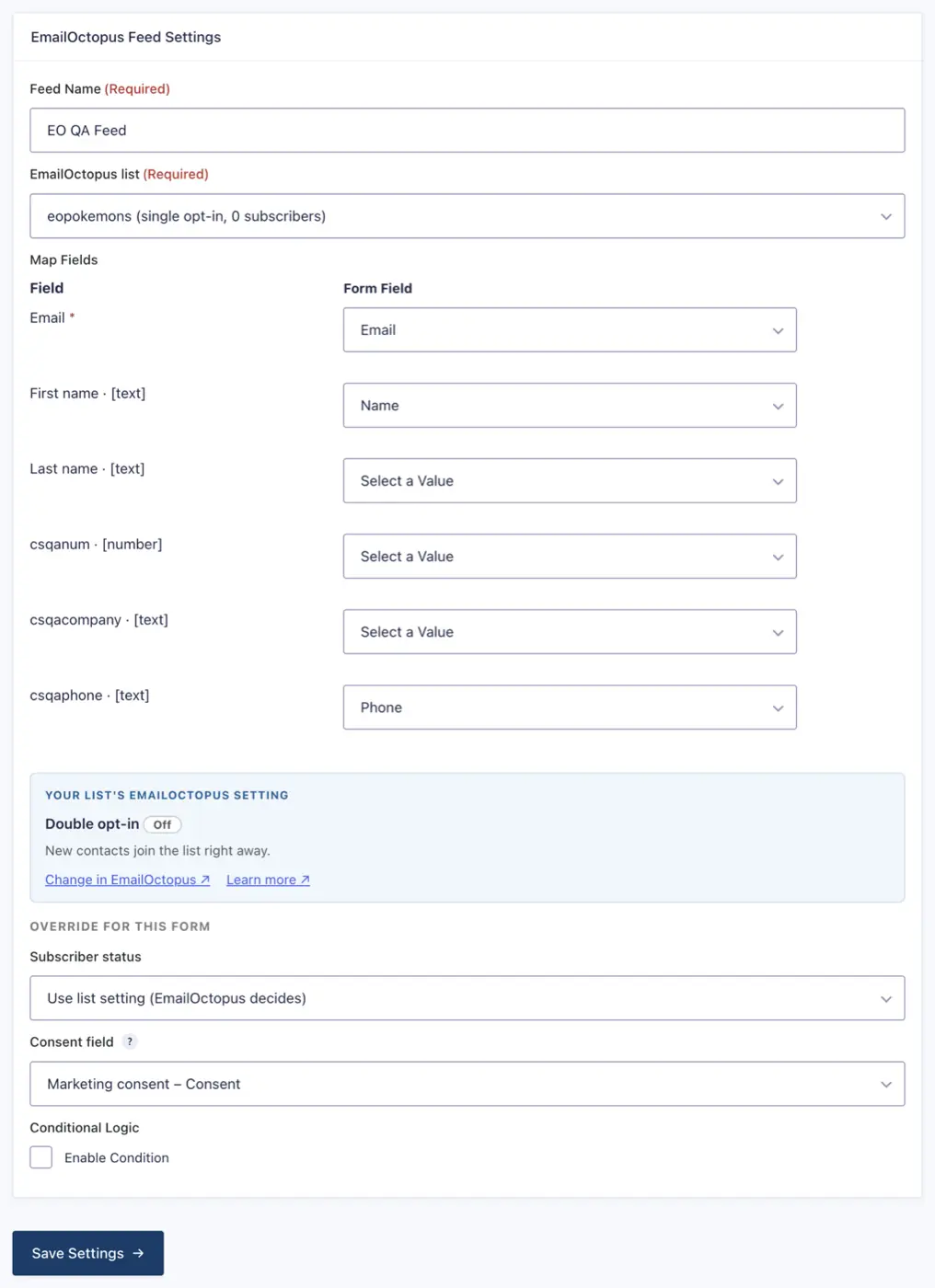
Every builder maps the same schema: Email (required) plus the selected list’s own EmailOctopus fields (first name, last name and any you define), and the panel maps them by tag, showing each field’s type. Fields are per list, so the mapping rows follow the list you choose, and the plugin sends number fields as real numbers, so they match the type you set in EmailOctopus. EmailOctopus upserts contacts by email, so a repeat submission updates the same contact instead of creating a duplicate. Also, ClickSyncr simply skips an unmapped field and never overwrites existing data with a blank value.
Two details make this integration feel native. First, fields are per list: pick a list and the mapping rows show that list’s own fields, including typed number fields that the plugin sends as real numbers. Second, the panel reads the list’s real double opt-in setting, so the subscriber-status choices always describe what will actually happen: subscribed right away, or pending until EmailOctopus’s confirmation email is clicked.
Submit the form on the front end (not the admin preview) with a test address you can recognise, filling every mapped field. In EmailOctopus, open the list and find the contact. A pending contact means EmailOctopus sent its confirmation email first: either the list uses double opt-in, the form’s status is set to Pending, or the consent box was left unticked. Back in WordPress, the ClickSyncr entry in the admin bar shows per-form sync counts and the last error, if any: a quick pulse check without leaving the site.
| Symptom | Cause and fix |
|---|---|
| Lists don’t load after pasting the key | Create the key under Developer → API keys in the EmailOctopus dashboard and paste it exactly. |
| The contact shows as pending | That’s the confirmation flow: the list uses double opt-in, the form’s status sends pending, or the consent box was unticked. EmailOctopus subscribes them when they click the confirmation email. |
| A field stays empty on the contact | Fields are per list. Check the mapping row and confirm the field exists on the list you selected, with a compatible type (number fields only accept numeric values). |
| Sync stopped working | Check the admin-bar health menu for the last error. An invalid or rotated API key is the usual cause; paste the new key in any builder and it updates everywhere. |
Yes. ClickSyncr for EmailOctopus registers a standard Gravity Forms feed add-on, so feeds behave exactly like the Gravity Forms integrations you already know.
Any license tier works. The plugin only needs Gravity Forms itself active on the site.
ClickSyncr for EmailOctopus also connects Contact Form 7 · WPForms · Ninja Forms · Fluent Forms · Formidable Forms · Forminator. Overview and features: EmailOctopus integration for WordPress. Browse all ClickSyncr integrations.
“EmailOctopus” is a trademark of Three Hearts Digital Ltd. ClickSyncr for EmailOctopus is an independent integration and is not affiliated with, endorsed by, or sponsored by Three Hearts Digital Ltd.
Your next subscriber is one connection away
Install ClickSyncr, connect your platform, and publish your first tested sync in about two minutes.
Built by Renzo Johnson