Prepare the fields
Give the form an email field, plus any name or custom fields you want in Kit.
Kit (formerly ConvertKit) integration
Turn Contact Form 7 into a ConvertKit contact form: this free integration connects Contact Form 7 to Kit, the email platform formerly known as ConvertKit, and every form submission becomes a subscriber in the Kit form you choose.
A clear setup path
Keep the existing form and configure the destination beside the workflow you already use.
Give the form an email field, plus any name or custom fields you want in Kit.
Paste your Kit API key into the connection settings and connect.
Pick where new subscribers land in Kit: the list, group, form or audience you use.
Pair each form field with a Kit field. Email is required; the rest is optional.
Send a test entry, then find the new subscriber in Kit before you rely on the form.
Turn Contact Form 7 into a ConvertKit contact form: this free integration connects Contact Form 7 to Kit, the email platform formerly known as ConvertKit, and every form submission becomes a subscriber in the Kit form you choose. The free ClickSyncr for Kit plugin adds a ClickSyncr Kit tab right in the Contact Form 7 editor: connect your v4 API key once, pick a Kit form, map your fields, save. So there is no code, and it takes about two minutes per form.
You need three things: the ClickSyncr for Kit plugin activated, Contact Form 7 active, and a Kit account (free accounts work, including accounts from the ConvertKit era) with permission to create a v4 API key. You store the key once, and every supported builder on the site then shares it.
Treat the key like a password. Anyone holding it can read and modify your Kit subscribers.
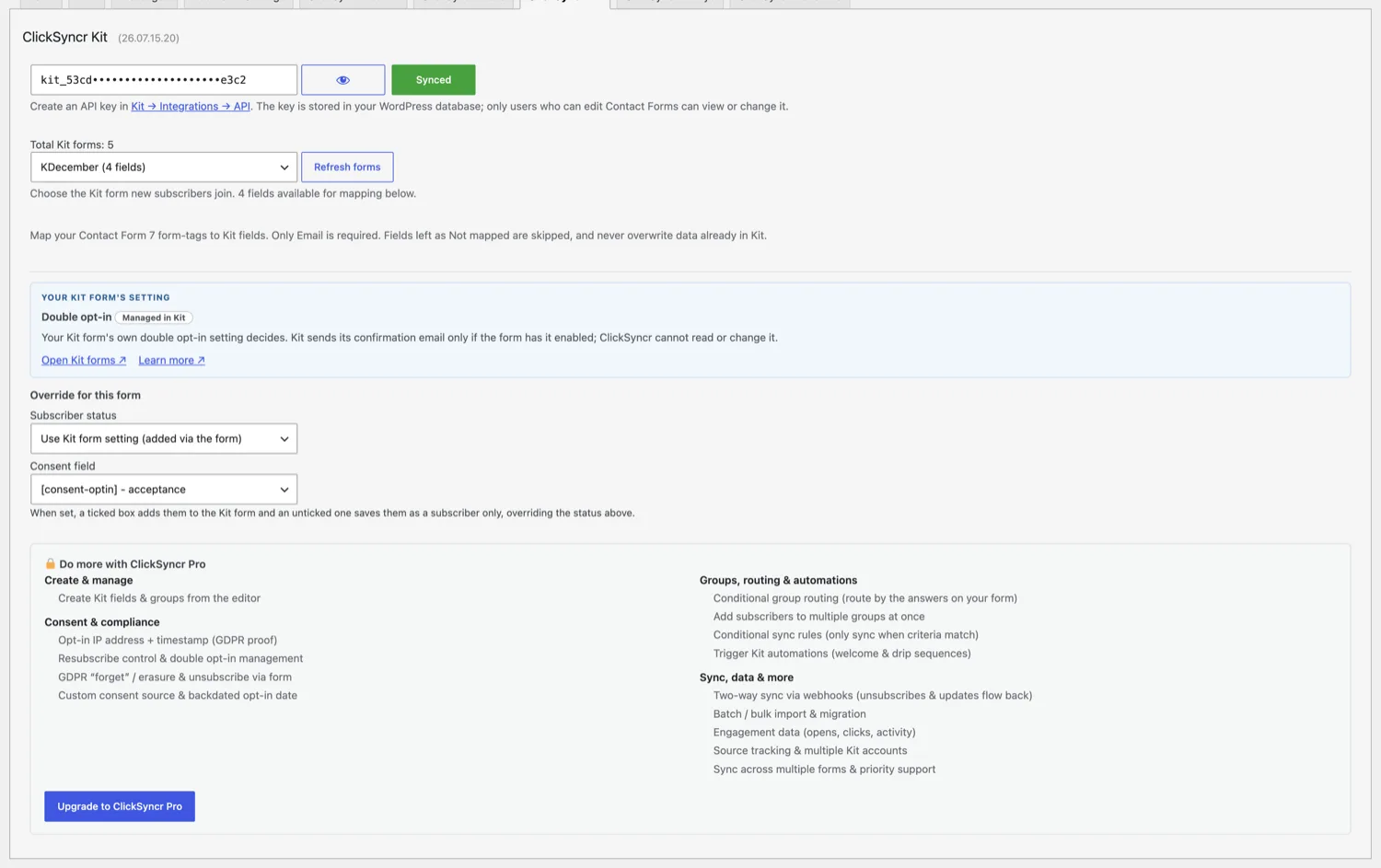
Kit identifies subscribers by email, so Email is the one required mapping. First name has its own field, and every custom field in your Kit account loads automatically once the key connects, ready to receive any other form input. Also, ClickSyncr simply skips an unmapped field and never overwrites existing subscriber data with a blank value. Because subscribers are matched by email, a repeat submission updates the existing subscriber instead of creating a duplicate.
Kit handles confirmation at the form level: each Kit form carries its own incentive email and double opt-in settings inside Kit. ClickSyncr subscribes the visitor to the Kit form you chose, and your form’s own settings decide whether a confirmation email goes out first. That means your opt-in behaviour stays exactly where Kit users expect to manage it.
First, submit the form on the front end (not the admin preview) with a test address you can recognise, filling every mapped field. Then, in Kit, open Subscribers and confirm the subscriber exists with the mapped values, and check the Kit form’s own reporting for the new entry. In short, that one minute catches almost every configuration mistake.
| Symptom | Cause and fix |
|---|---|
| The Kit form dropdown is empty | The key is missing or mistyped, or it is not a v4 key. Create a v4 API key in Kit’s Developer section, re-paste it and reconnect. |
| Submissions do not appear in Kit | Nine times out of ten the Email field is not mapped. It is the one required mapping. Fix it, then submit a fresh test. |
| A new Kit form or custom field is not listed | The catalog is cached briefly. Use the refresh control in the Contact Form 7 settings. |
| The subscriber syncs but a field is empty | Either that field is unmapped, or it was blank on the submission. ClickSyncr skips empty values, so they never wipe existing Kit data. |
| The subscriber shows as unconfirmed in Kit | Your Kit form has double opt-in enabled, so Kit sent a confirmation email first. The Kit form’s own settings control that, not the plugin. |
No. ClickSyncr for Kit stores one v4 API key for the whole site, so every form and every builder shares the same connection. Each form still chooses its own Kit form and field map.
Yes. Kit is the new name for ConvertKit, and the same accounts and v4 API keys work unchanged.
ClickSyncr for Kit also connects WPForms · Gravity Forms · Ninja Forms · Fluent Forms · Formidable Forms · Forminator. Overview, features and pricing: Kit integration for WordPress. Browse all ClickSyncr integrations.
“Kit” and “ConvertKit” are trademarks of Kit, Inc. ClickSyncr for Kit is an independent integration and is not affiliated with, endorsed by, or sponsored by Kit, Inc.
Kit subscriber creation and form membership are separate steps. If the first succeeds but the second fails, ClickSyncr records a message saying the subscriber was created but could not be added to the form. Check the recorded error and selected Kit form in your Contact Form 7 configuration. Finding the subscriber in Kit alone does not prove that the form connection completed.
No. With no consent field selected, choosing subscriber-only mode lets ClickSyncr save the person in Kit without adding them to the Kit form. With a consent field selected on your Contact Form 7 form, an unchecked answer blocks the send before it reaches Kit. Review both settings when testing; a deliberate subscriber-only configuration and a refused consent answer have different outcomes.
The Kit field list contains a display label and a separate field key. ClickSyncr shows the label when Kit supplies one, but stores and sends the field key. When checking a Contact Form 7 mapping against your Kit account, identify the field itself rather than relying only on similar labels. Reconnect or refresh the available fields after an account change, then verify the saved mapping with a test.
What you will see
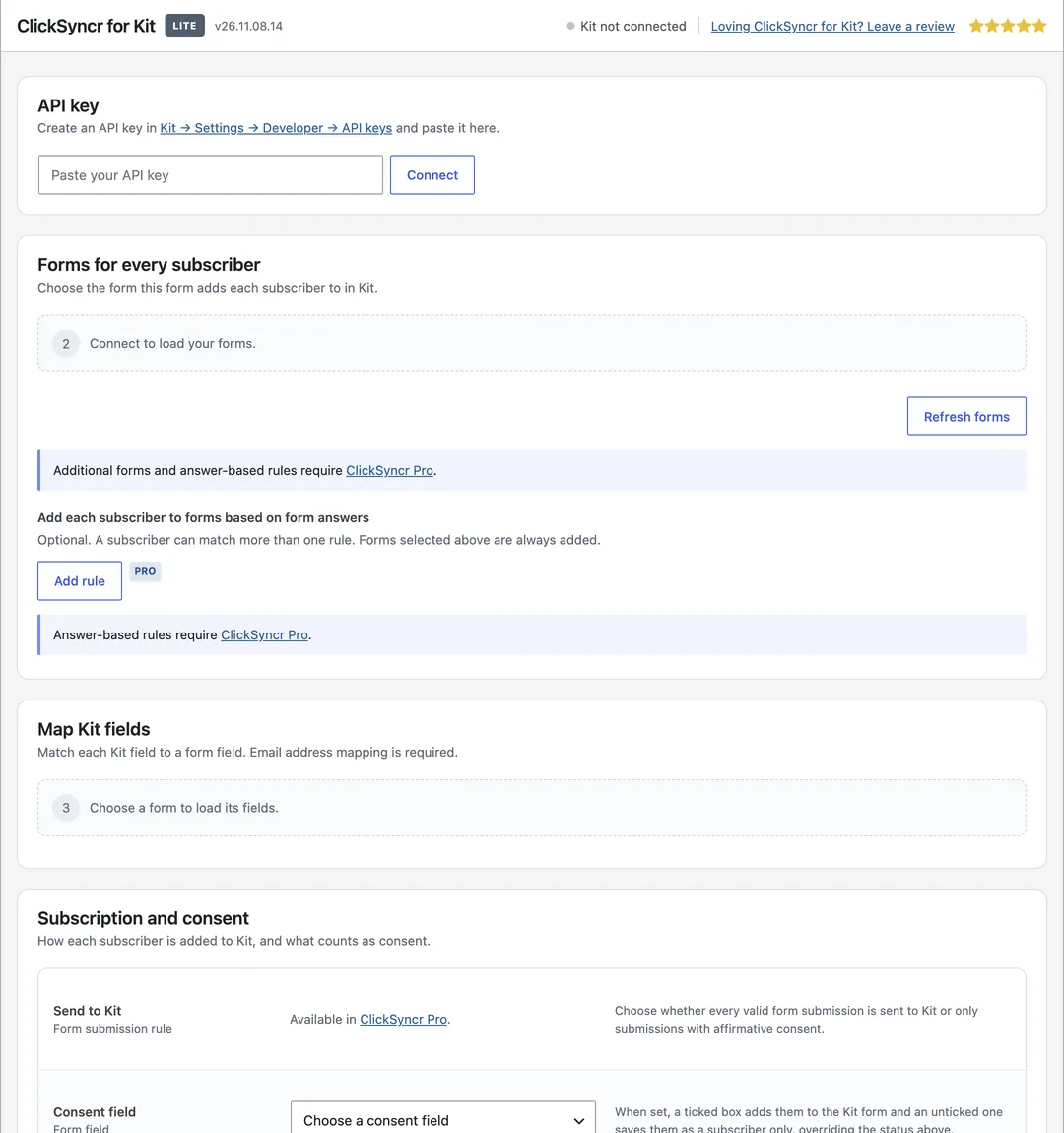
The same panel appears inside every supported form builder, on each form you connect.
More guides
Set up the Contact Form 7 Benchmark Email integration with ClickSyncr for Benchmark Email.
View guideConnect Contact Form 7 to Beehiiv and every form submission becomes a subscriber in the publication you choose.
View guideConnect Contact Form 7 to Brevo and every form submission becomes a contact in the Brevo list you choose.
View guideConnect Contact Form 7 to Campaign Monitor and every form submission becomes a subscriber in the Campaign Monitor list you choose.
View guideSet up the Contact Form 7 Elastic Email integration with ClickSyncr for Elastic Email.
View guideConnect Contact Form 7 to EmailOctopus and every form submission becomes a subscriber in the EmailOctopus list you choose.
View guideThe Contact Form 7 GetResponse integration uses ClickSyncr for GetResponse to send each submission to a GetResponse list.
View guideConnect Contact Form 7 to Klaviyo and every form submission becomes a profile in the list you choose.
View guideConnect Contact Form 7 to MailerLite and every form submission becomes a subscriber in the group you choose.
View guideConnect Contact Form 7 to Moosend and every form submission becomes a subscriber in the Moosend mailing list you choose.
View guideThe Contact Form 7 SendPulse integration uses ClickSyncr for SendPulse to send each submission to a SendPulse address book.
View guideSet up the Contact Form 7 Drip integration with ClickSyncr for Drip.
View guideThe Contact Form 7 Loops integration uses ClickSyncr for Loops to send each submission to a Loops mailing list.
View guideYour next subscriber is one connection away
Install ClickSyncr, connect your platform, and publish your first tested sync in about two minutes.
Built by Renzo Johnson