EmailOctopus integration

Connect your WordPress forms. Send every lead to EmailOctopus.

Connect Your WordPress Forms to EmailOctopus ClickSyncr for EmailOctopus is a EmailOctopus integration for WordPress forms: it turns form submissions into EmailOctopus subscribers automatically. It works with Contact…

your WordPress forms
EmailOctopus
Direct connection supported

A clear setup path

Connect, map, test, publish.

Keep the existing form and configure the destination beside the workflow you already use.

01 / FORM

Prepare the fields

Complete this step in the ClickSyncr interface and save the configuration.

02 / API

Connect the account

Complete this step in the ClickSyncr interface and save the configuration.

03 / LIST

Choose the destination

Complete this step in the ClickSyncr interface and save the configuration.

04 / MAP

Match the fields

Complete this step in the ClickSyncr interface and save the configuration.

05 / TEST

Submit and verify

Complete this step in the ClickSyncr interface and save the configuration.

Connect Your WordPress Forms to EmailOctopus

ClickSyncr for EmailOctopus is a EmailOctopus integration for WordPress forms: it turns form submissions into EmailOctopus subscribers automatically. It works with Contact Form 7, WPForms, Gravity Forms, Ninja Forms, Fluent Forms, Formidable Forms, and Forminator: whichever builder your site uses, every submission lands in the EmailOctopus list you choose, with field mapping and no code required.

Works with your form builder

ClickSyncr integrates natively with each builder, so the EmailOctopus settings live where you already work. Each name links to its step-by-step setup guide:
How it works

  1. Install ClickSyncr for EmailOctopus and activate it. It detects your form builder automatically.
  2. Open your form in its builder and find the ClickSyncr EmailOctopus tab, section, feed, action, or integration.
  3. Paste your EmailOctopus API key once. ClickSyncr connects to your account and loads your lists and their fields, and every builder shares the connection.
  4. Choose the EmailOctopus list for this WordPress form.
  5. Map your form fields and save.
  6. Done. Every new submission is sent to EmailOctopus as a subscriber.
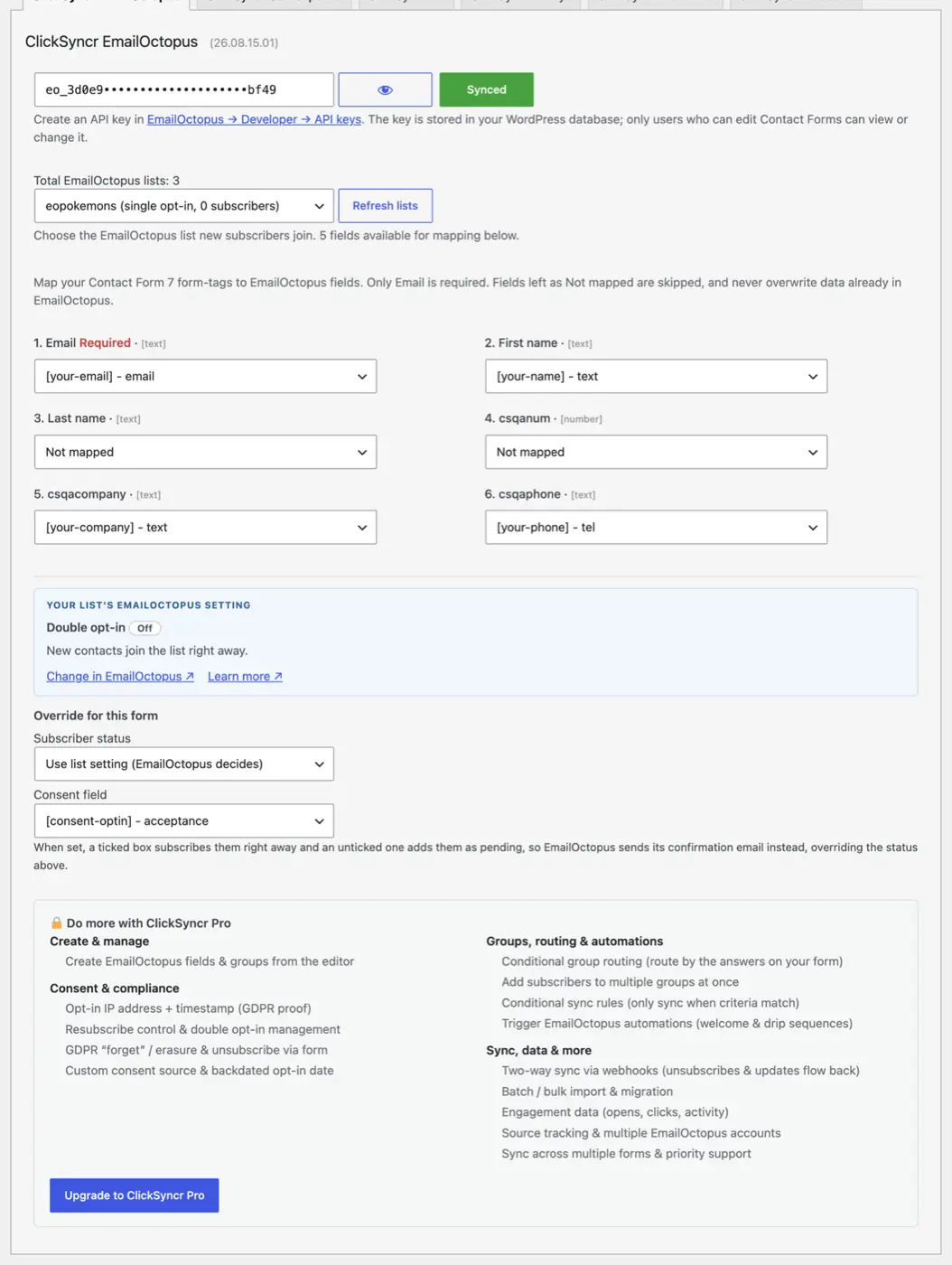
The ClickSyncr EmailOctopus panel: key connected, list selected with its opt-in mode, fields mapped, status and consent control.

EmailOctopus integration features

  • No duplicate subscribers: EmailOctopus upserts contacts by email, so a repeat submission updates the same contact instead of creating a duplicate.
  • Field mapping: Email is the only required mapping; list fields load automatically with their types shown.
  • Typed field mapping: number fields are sent as real numbers, so EmailOctopus keeps the exact types you defined on the list.
  • Honest status choices: the panel reads the list’s real double opt-in setting, so the status options describe exactly what will happen: subscribed right away, or pending until confirmed.
  • Consent aware: Set an optional consent field (a checkbox, acceptance or radio). A ticked box subscribes the contact right away; an unticked box sends them as pending, so EmailOctopus asks for confirmation before they join the list.
  • One connection, seven builders: the API key is stored once and shared across every supported form builder on the site.
  • Sync health at a glance: an admin-bar menu shows every configured form’s sync counts and the last error, if any.
  • Coexists with every other ClickSyncr integration: run EmailOctopus alongside Mailchimp, HubSpot, ActiveCampaign and 20+ more on the same site.

Get your EmailOctopus API key

  1. Log in to EmailOctopus and go to Developer → API keys (dashboard.emailoctopus.com/developer/api-keys).
  2. Click Add key, name it, and copy the key.
  3. Paste it into any ClickSyncr EmailOctopus panel. One key serves the whole site: once one builder saves it, every other builder reuses the connection automatically.

Treat the key like a password. Anyone holding it can read and modify your EmailOctopus audience.

Which form builder should you use with EmailOctopus?

Any of them. If your site already runs Contact Form 7, WPForms, Gravity Forms, Ninja Forms, Fluent Forms, Formidable Forms, or Forminator, ClickSyncr connects the forms you already have to EmailOctopus: there is no reason to switch builders just to grow your list. The plugin only loads the integrations for builders you actually have active, and the sync behaves identically on all seven.

“EmailOctopus” is a trademark of Three Hearts Digital Ltd. ClickSyncr for EmailOctopus is an independent integration and is not affiliated with, endorsed by, or sponsored by Three Hearts Digital Ltd.

ClickSyncr for EmailOctopus Changelog

VersionDescription

26.08.24.11

First release on WordPress.org

ClickSyncr Form Sync for EmailOctopus syncs form submissions to an EmailOctopus list from seven form builders. One API key covers them all, and each form picks its own list.

Improvements (6)
  • Works in Contact Form 7, WPForms, Gravity Forms, Ninja Forms, Fluent Forms, Formidable Forms, and Forminator.
  • Each form chooses its own EmailOctopus list and maps its own fields, including EmailOctopus custom fields.
  • Subscribe contacts directly, leave them unconfirmed, or defer to the list's own double opt-in setting, per form.
  • Values mapped to an EmailOctopus number field are sent as numbers, so segments and filters keep working.
  • A per-form consent field decides whether a submission syncs at all.
  • An admin-bar menu shows every form's sync counts and the last error, if any.
Fixes (0)
Patches (0)

Your next subscriber is one connection away

Connect your next form to EmailOctopus.

Install ClickSyncr, connect your platform, and publish your first tested sync in about two minutes.

Built by Renzo Johnson